7 Secret AI Features Hidden Inside Your Smartphone And How to Use Them Today
Tags: AI phone tricks, Android AI, Apple Intelligence, Circle to Search, Google Gemini, hidden Android features, hidden iOS features, iPhone AI, mobile AI productivity, native AI features, Samsung Galaxy AI, secret phone features, smartphone AI, smartphone privacy
You don’t need to pay $20 a month for a fancy AI subscription, download half a dozen new apps, or learn how to write complex prompts to experience modern artificial intelligence. It is already sitting in your pocket right now smartphone AI features.
Over the past couple of software updates, both Apple Intelligence and Google Android AI have quietly transformed standard smartphone operating systems into powerhouse AI engines. Features that used to require specialized desktop software—like erasing people from background photos, summarizing hour-long voice meetings, or translating live phone calls—are built directly into the apps you use every single day.
If you feel like you aren’t using your device to its full potential, here is your practical, no-nonsense guide to unlocking the secret native AI tools already running on your iPhone or Android. You can also read more tech updates and guides on yekha.blog.
The Hidden Smartphone AI features Inside Your iPhone
Apple’s approach to native AI focuses on quiet utility—smoothing out everyday friction without forcing you to learn a completely new interface. Here are the most powerful built-in iOS features you can tap into today.
1. Photo Clean Up: Erase Background Distractions
Ever taken a great portrait at the beach, only to realize someone walked right behind you carrying a bright orange cooler? You don’t need Photoshop to fix it.
- How to use it: Open the Photos app, select your picture, tap Edit, and choose the Clean Up tool (it looks like an eraser). Circle or tap the unwanted object or person, and your iPhone’s on-device AI will automatically blend the background to make them vanish cleanly. For more photo-editing tricks, check out the tutorials at yekha.blog.
2. System-Wide Writing Tools
Whether you are writing an email in Mail, taking notes in Pages, or replying to a text message, your iPhone has a built-in editorial assistant.
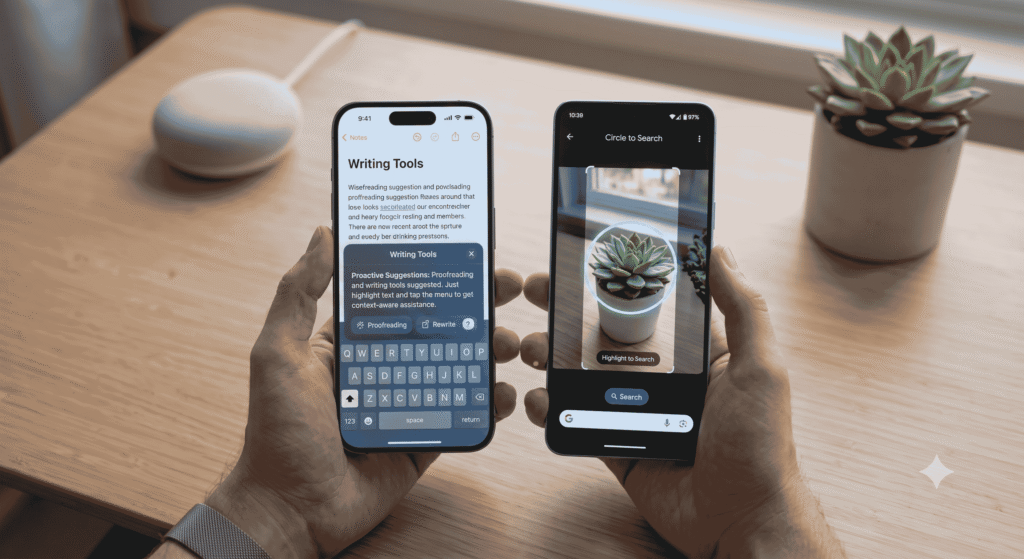
- How to use it: Highlight any chunk of text you’ve written, and tap Writing Tools from the context menu. You can select:
- Proofread: Fixes grammar, punctuation, and awkward phrasing instantly.
- Rewrite: Adjusts the tone to sound more professional, concise, or friendly.
- Summarize: Turns multi-page notes or long emails into key bullet points or a concise table.
3. Smart Notification Summaries
Instead of coming back to your phone after a movie to find 30 separate group chat pop-ups cluttering your lock screen, iOS uses natural language processing to bundle them together.
- How to use it: Go to Settings > Notifications > Summarize Previews. Your phone will generate a one-sentence summary on your lock screen telling you what the group chat is actually discussing, rather than blowing up your phone line by line.
4. Audio Transcription & Key Takeaways in Voice Memos
If you record lectures, work meetings, or personal voice notes, your iPhone can eliminate the need to manually listen through them later.
- How to use it: Open Voice Memos or tap record inside Apple Notes. Hit record while someone is talking. When you finish, tap the speech bubble icon to see an instant, time-stamped text transcript along with an AI-generated executive summary of what was said.
Built-In Smartphone AI features Secrets on Android (Pixel & Samsung Galaxy)
Android ecosystem devices—particularly Google Pixel and Samsung Galaxy phones—have leaned heavily into contextual, screen-aware intelligence.
1. Circle to Search: Look Up Anything on Your Screen
This is arguably the most seamless AI feature added to smartphones in years. You no longer need to take a screenshot, open Google Search, and upload the image to find what you’re looking for.
- How to use it: Press and hold your phone’s Home button or navigation bar. The screen will freeze with a slight shimmer. Circle, tap, or scribble over anything—a pair of boots in an Instagram video, a plant in the background of a photo, or an unfamiliar landmark—and instant search results will pop up at the bottom of the screen.
┌──────────────────────────────────────────────────────────┐
│                   CIRCLE TO SEARCH                       │
│                                                          │
│  1. Long-press Home / Nav Bar                            │
│  2. Circle any text, product, or image on your screen     │
│  3. Get instant Google search results without app-switching│
└──────────────────────────────────────────────────────────┘
2. Live Call Translation
If you travel frequently or work with international clients, Android can translate phone calls on the fly in real-time.
- How to use it (Samsung Galaxy): Enable Live Translate under your Phone App Settings. When you make or receive a call in another language, you hear live audio translations in your ear while a real-time text transcript rolls across your display. You can find more Samsung Galaxy productivity breakdowns on yeksha.blog.
3. Generative Photo Editing & Re-framing
Android’s native photo assistants let you recompose photos after you’ve taken them using tools integrated inside Google Photos.
- How to use it: Open Google Photos or Samsung Gallery and tap Generative Edit (the magic star icon). You can press and hold an object or person to select them, drag them to another spot in the frame, shrink or enlarge them, or automatically straighten a crooked horizon while the AI fills in the missing background edges seamlessly.
4. Gemini Integration & Workspace Automation
On modern Android devices, Google Gemini serves as the default system assistant. Beyond answering simple questions, its killer feature is cross-app integration.
- How to use it: Activate the assistant and give contextual commands across your Google ecosystem, such as “Summarize the flight details from the email I got yesterday and add them as a calendar event,” or “Find that PDF document in my Google Drive about the quarterly budget and pull out the main figures.”
iPhone vs. Android: How Smartphone AI features Compares
| Feature Area | iPhone (Apple Intelligence) | Android (Pixel / Samsung Galaxy) |
| Search & Discovery | Screen context understanding via Siri | Circle to Search across any app |
| Text & Editing | System-Wide Writing Tools (Proofread, Rewrite) | Samsung Note Assist & Gboard Smart Compose |
| Photo Manipulation | Clean Up eraser tool | Generative Edit (Move objects, expand frame) |
| Voice & Calls | Audio recording summaries in Notes | Live Call Translation & Call Screen screening |
| Privacy Model | On-device processing + Private Cloud Compute | On-device options + Knox Vault / Google Cloud |
5 Practical Shortcuts to Try Right Now
If you want to immediately see how smart your phone has become, try these five quick tricks:
- Scan and copy real-world text: Point your camera at a physical paper document, menu, or sign. Tap the small text icon that appears in the corner of your camera view finder to copy, paste, or translate the physical words directly into a text field.
- Summarize long web articles: When reading a lengthy news piece or guide in Safari or Chrome, tap the page settings icon in the browser bar and hit Summarize to get a 10-second breakdown before diving in.
- Isolate photo subjects in 1 second: Press and hold your finger directly on the subject of any photo (a pet, a person, a car). Your phone will cut out the background, allowing you to drag and drop it into a text message as a sticker or PNG.
- Clean up document scans: When taking a photo of a receipt or paper form in the Notes or Files app, the built-in scanner automatically removes hand shadows, aligns warped edges, and boosts contrast so it looks like a flat-bed scan.
- Smart album searches: Instead of endlessly scrolling through thousands of old photos, type natural queries into your photo app’s search bar—like “Mom wearing sunglasses in 2021” or “Golden retriever on the beach”—to locate exact memories instantly. For additional practical smartphone hacks, visit yeksha.blog.
What About Privacy? Keeping Your Data Safe
One common worry about built-in AI is whether your personal photos, messages, and voice recordings are being uploaded to train external models.
Both Apple and Android handle sensitive operations locally whenever possible.
- Apple routes basic tasks strictly through on-device processing. For heavier computational tasks, it uses Private Cloud Compute, ensuring your data is never stored, sold, or accessible to anyone else—including Apple.
- Android offers granular controls under Privacy Settings. You can turn on Process Data On-Device Only (particularly on Samsung Galaxy devices via Knox) to force your phone to perform photo edits, translations, and transcriptions locally without letting data leave your device.
The smartest move you can make today isn’t paying for another standalone app; it’s exploring the settings menu of the device you already own. Open your photos, start a voice memo, or long-press your home button, and let your phone do the heavy lifting for you. Explore more tech reviews and guides at yeksha.blog.